For a practical Risk of Rain 2 mod setup, use r2modman, select Risk of Rain 2 and the correct storefront, create a dedicated profile, and install packages through its online catalog. Launch with Start modded when you want that profile's mods. Use Start vanilla for an ordinary game session. This workflow concerns the PC mod ecosystem; it is not a console installation procedure.
Start with a small profile and verify that it reaches the menu before adding a large content pack. Hallowed Concepts and its free update arrived in October 2026, so package compatibility matters more than whether an older video called a mod essential. A recently updated package is a useful signal to inspect, but it does not prove that your entire chosen combination works together.
Keep the manager, framework, and content packages distinct
r2modman is the program that organizes installations and launches profiles. BepInEx provides the plugin framework used by much of the ecosystem. R2API and its components provide interfaces that other packages may depend on. They are different roles, so a list of installed libraries is not the same thing as a list of gameplay changes.
Thunderstore is the package catalog you browse through the manager or website. A package may add a survivor, adjust the interface, share loot, or provide a dependency for another package. Read its purpose and requirements before installing it. A package with a developer-oriented name might be a library you need indirectly rather than a visible feature you should search for in the game menu.
The manager can install declared dependencies when you download a package. That simplifies setup, but it does not eliminate the need to check whether the package supports the current game update. Dependencies can be present while a mod's code is still incompatible with changed game behavior.
Avoid mixing manual files into a managed installation without a specific reason and clear instructions. A managed profile is easiest to troubleshoot when its package list reflects what you actually installed. Otherwise, disabling a package in the manager may leave a separate manually copied plugin active, making your test result misleading.
Create a separate profile for the first working setup
Install r2modman from its legitimate package distribution, open it, and choose Risk of Rain 2 from the game selection screen. Select the storefront that matches your installed game. Then create and name a profile. Use a name that describes the setup, such as a minimal interface profile or a cooperative content profile, so you can identify it later.
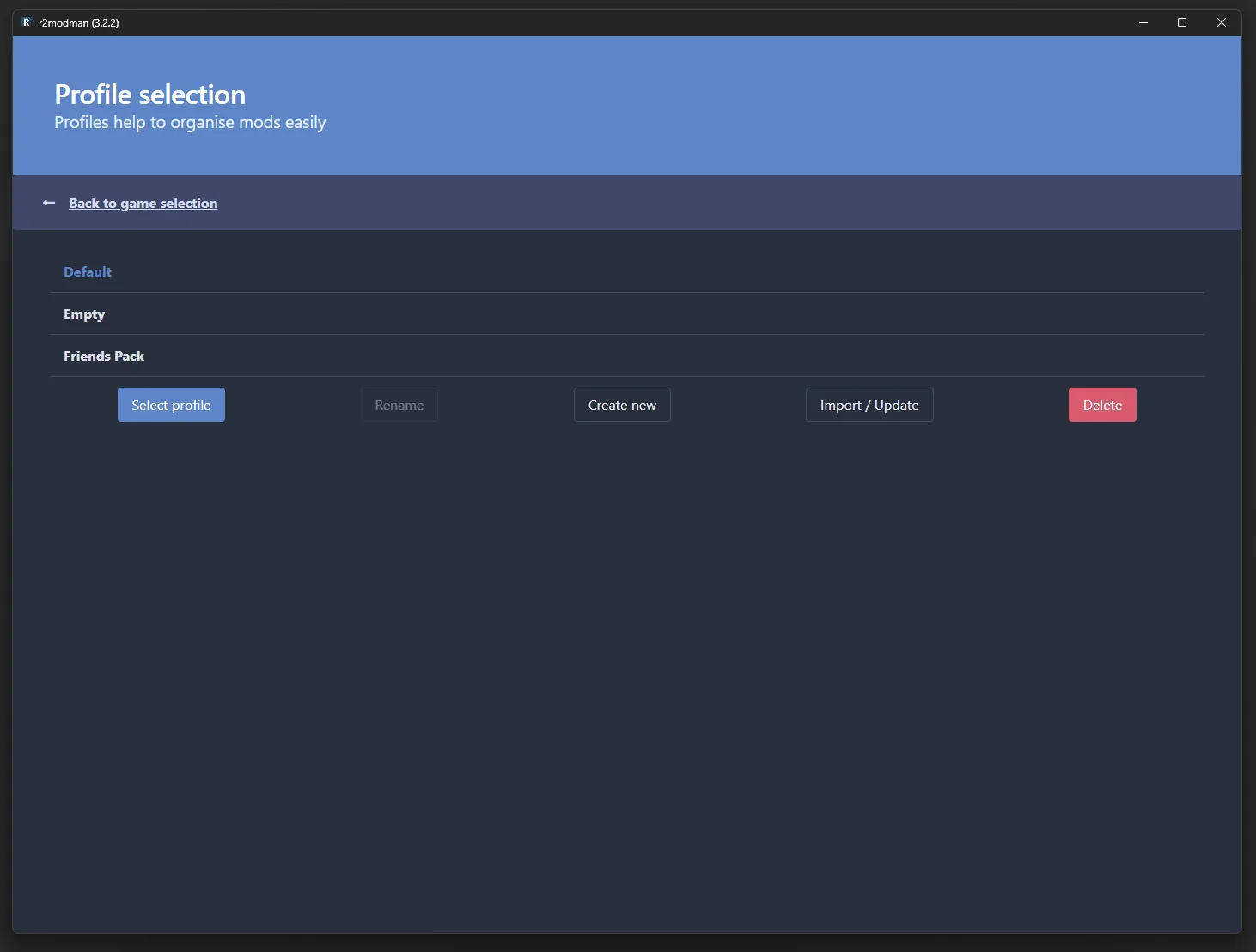
Each profile holds a distinct mod collection. This lets you keep an ordinary quality-of-life setup separate from an experimental survivor pack. Do not add every interesting package to your only working profile at once. A second profile gives you somewhere to test a change without making the first profile's package list impossible to reconstruct.
After selecting the new profile, open the online package list and install a small starting set. Review the installed list afterward so you know which packages were added as dependencies. The names of framework components may look unfamiliar; check why they are present before deciding they are unnecessary and removing them.
Run the profile once and confirm that you reach the game menu. If the manager offers a package update afterward, inspect what changes before updating a shared cooperative setup. The moment you alter a working profile is also the moment its old exported code may stop representing what you currently run.
Launch the correct profile through the correct button
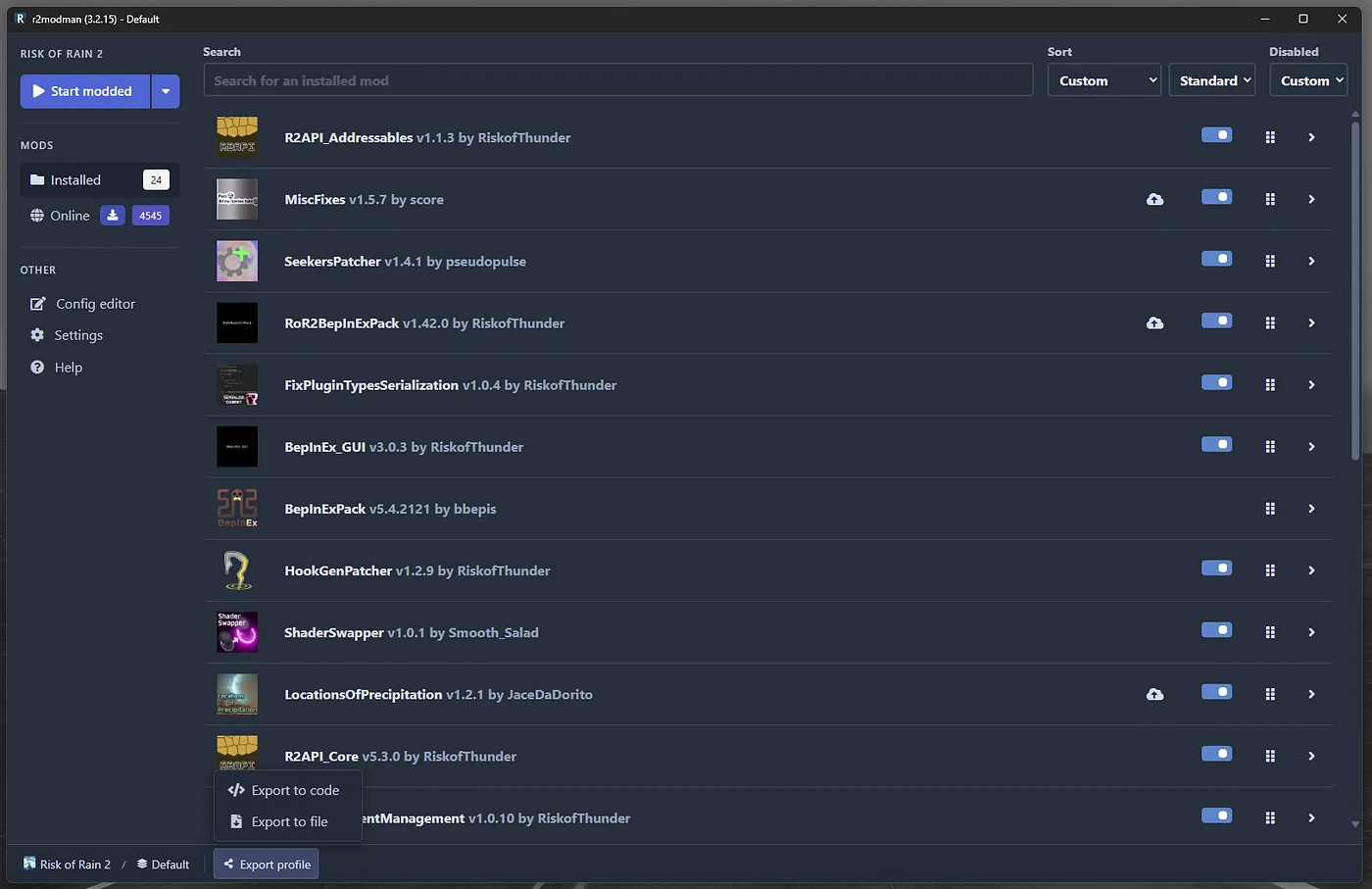
Start modded launches the selected profile with its managed plugins. Opening the game through the ordinary Steam route does not automatically mean that the manager's chosen mods are active. If you see no custom content, first verify how you launched and which profile was selected.
Start vanilla gives you a straightforward way to check the base game without that managed mod set. Use it as a diagnostic comparison when something fails after a package change. A failure that also occurs in an ordinary launch deserves a different investigation from one that appears only in the new profile.
Keep the launch result concrete. Reaching the menu verifies that the setup got that far; it does not establish that every custom enemy, item, or multiplayer mechanic works. Test the particular feature you installed. For a survivor package, check that it is selectable and can begin a run. For an interface package, check the affected display. For a cooperative change, verify a lobby with the intended group.
If the loading screen takes longer than usual, allow time for a legitimate startup before force-closing it. Repeated freezes at the same point after a package addition are a reason to inspect the profile, dependency list, and errors rather than continually relaunching the identical setup and hoping for a different result.
Choose packages by the problem you want to solve
A useful mod list begins with a need. Interface packages can improve descriptions or visibility without necessarily changing the game's combat rules. Content packages may add survivors, skills, or enemies. Balance and loot-sharing packages can change what a run means for every player, so agree on those changes before building a cooperative profile around them.
Examples in the current catalog include ProperSave, described as saving run progress at the start of a stage, and WolfoQualityOfLife, described as adding interface and presentation improvements. Those descriptions explain what to investigate. They do not establish that every package version works with every other mod or that a saved modded run can be reopened after arbitrary updates.
The catalog also contains developer libraries such as ExtraSkillSlots and R2API components. Install a required library when a package declares it. Do not treat its presence as evidence that a new skill will appear independently; the package that uses the library is what supplies the visible feature.
Be precise about official and modded survivors. Risk of Rain 2 now has an official Enforcer associated with Hallowed Concepts, while the ecosystem has also contained community Enforcer packages. A mod page's unlock or abilities do not automatically describe the official survivor. Check the package author, description, and intended content before applying a guide to the character you selected.
Configure a package after its first successful launch
Many packages generate configuration files only after the game has launched with them installed. If the Config editor appears empty immediately after installation, first run the profile once, close the game, and inspect the editor again. An absent initial configuration file is not by itself proof that installation failed.
The manager's Config editor provides one route to settings. Some packages also expose options inside the game; others require file-based configuration. Use the controls documented for that package rather than assuming every mod has a menu beside the normal game settings.
Change one setting at a time when you are testing behavior. Record the old value or keep a copy of the configuration before a substantial edit. If a configuration becomes invalid, a package may regenerate its default file after the damaged file is removed and the mod is launched again. Preserve your customized values before doing that so you can restore deliberate choices instead of rebuilding them from memory.
Separate a visual preference from a gameplay change. Font size or a panel's visibility may be a personal choice, while damage values, item sharing, or content-spawn settings can affect everyone in the lobby. A cooperative profile should be discussed at the level of actual behavior, not only package names.
Share the profile and keep multiplayer versions aligned
Export the intended profile as a code or file through the manager's available export controls. Have teammates import it into a new profile instead of telling them to search manually for a long list of similarly named packages. Confirm that everyone imported the correct profile and selected it before launching.
A profile export is a starting point for matching installations. If one player updates a package afterward, the group's versions can diverge. Share an updated profile or agree on the same package versions before investigating a version-mismatch message. The simplest first check is the installed list, including dependencies and relevant configurations.
Do not assume a modded player can join an ordinary lobby with arbitrary custom content. Packages that add new survivors, enemies, or skills need compatible installations across the players using that content. Some interface-only packages have different compatibility rules; follow their individual instructions instead of applying one blanket rule to the whole catalog.
Avoid using a version-spoofing package as the first response to a mismatch. Making a connection appear compatible does not install missing content on another player's machine. Matching the profile addresses the underlying difference and makes the behavior easier to reproduce when a package genuinely has a problem.
Isolate errors without dismantling a working installation
When a new profile fails, begin with the change you just made. Disable the latest added package and test again. If several were added together, compare with a smaller working profile and restore the additions in manageable groups. This is more informative than deleting unrelated game files or changing every configuration simultaneously.
Read errors for the package or missing dependency they name. A missing-dependency message points toward an installation requirement; an exception from a specific mod after a game update can point toward compatibility. Those are different problems, and reinstalling the same unchanged content does not necessarily fix either one.
If the base game works through Start vanilla but a minimal modded profile does not, check the framework and launch configuration. If the minimal profile works and the large profile fails, focus on the additional packages. If a problem appears only in multiplayer, compare all participants' installations before assuming the local single-player test proves the lobby is correct.
Preserve a concise reproduction when reporting a problem: game update context, package versions, selected profile, launch method, and the action that triggers the error. Avoid dumping an unrelated giant mod list without identifying what changed. A specific report is more useful to a package maintainer than a claim that the entire game is broken.
Maintain the profile across game and mod updates
Keep a known working profile and an exported copy before a major update. Check package notes for the content you rely on, especially immediately after a new expansion or free update. A dependency update may be necessary, while a custom survivor package may need additional work from its own maintainer.
Do not equate a last-updated timestamp with a compatibility test. Read what the update actually addressed and verify the feature you use. Keep the cooperative group on the same tested combination while you evaluate newer versions separately.
For ordinary leaderboard-oriented modes such as Prismatic Trials, use an appropriate unmodified setup rather than treating a modded run as directly comparable. Keep the reason for each profile clear: interface convenience, added content, or altered rules. That gives you a setup you can launch, share, and troubleshoot deliberately instead of a collection of packages whose combined effects you no longer understand.